Best Hytale Server Settings for Performance
A laggy server drives players away faster than anything else. Whether you are hosting for a few friends or running a public community, optimizing your Hytale server settings can make the difference between a smooth experience and a frustrating one. This guide covers every tuning option that affects performance.
Understanding Hytale Server Performance
Before tweaking settings, it is important to understand what actually causes lag. Hytale server performance comes down to three bottlenecks:
- CPU - Hytale's server is primarily single-threaded, meaning one core handles most of the game logic. Clock speed matters more than core count.
- RAM - Determines how many chunks, entities, and player data can be held in memory at once.
- Storage - Affects chunk loading and saving speed. SSDs are dramatically faster than HDDs for this workload.
Network bandwidth is rarely the bottleneck for servers under 100 players, but the choice of QUIC/UDP protocol helps keep latency low regardless.
Java Flags and JVM Optimization
Hytale runs on Java 25. The JVM arguments you use when launching the server have a significant impact on performance.
Recommended Launch Command
java -Xmx8G -Xms8G -XX:+UseG1GC -XX:+ParallelRefProcEnabled -XX:MaxGCPauseMillis=200 -XX:+UnlockExperimentalVMOptions -XX:+DisableExplicitGC -XX:G1NewSizePercent=30 -XX:G1MaxNewSizePercent=40 -XX:G1HeapRegionSize=8M -XX:G1ReservePercent=20 -XX:G1MixedGCCountTarget=4 -XX:InitiatingHeapOccupancyPercent=15 -XX:G1MixedGCLiveThresholdPercent=90 -XX:SurvivorRatio=32 -jar HytaleServer.jar
What These Flags Do
| Flag | Purpose |
|---|---|
-Xmx8G -Xms8G | Set max and min RAM to the same value (prevents dynamic resizing) |
-XX:+UseG1GC | Use the G1 garbage collector (best for game servers) |
-XX:MaxGCPauseMillis=200 | Target maximum garbage collection pause of 200ms |
-XX:+ParallelRefProcEnabled | Process references in parallel during GC |
-XX:G1NewSizePercent=30 | Allocate 30% of heap to young generation |
-XX:G1HeapRegionSize=8M | Set GC region size (8M is good for 4-16GB heaps) |
-XX:InitiatingHeapOccupancyPercent=15 | Start GC earlier to prevent large pauses |
Key Points
- Always set -Xms equal to -Xmx. This prevents the JVM from dynamically resizing the heap, which causes lag spikes.
- Use G1GC. It is the best garbage collector for game server workloads with its focus on low pause times.
- Adjust RAM values to match your plan. Replace
8Gwith your actual allocated RAM. - Do not allocate more RAM than you need. Giving a server 32GB when it only uses 6GB wastes resources and can actually increase GC pause times.
RAM Allocation Guide
How much RAM your server needs depends primarily on player count and view distance.
| Server Size | Players | Recommended RAM | View Distance |
|---|---|---|---|
| Small (friends) | 1-10 | 4-6 GB | 10-12 chunks |
| Medium (community) | 10-30 | 8-10 GB | 8-10 chunks |
| Large (public) | 30-50 | 12-14 GB | 6-8 chunks |
| Massive | 50+ | 16+ GB | 6 chunks |
RAM Usage Factors
- View distance is the single largest RAM consumer. Each additional chunk of view distance loads more terrain into memory for every connected player.
- Loaded entities (mobs, animals, items on the ground) consume RAM. More players exploring more area means more entities.
- Mods and plugins add overhead. Complex mods with custom entities and world generation increase memory usage significantly.
- World size matters over time. As players explore more terrain, more chunk data needs to be stored and cached.
View Distance Optimization
View distance controls how far players can see and how much terrain the server loads around each player. It is measured in chunks (1 chunk = 32 blocks in Hytale). The default is 12 chunks (384 blocks).
Impact of View Distance
| View Distance | Chunks per Player | RAM Impact | Visual Quality |
|---|---|---|---|
| 6 chunks | Low | Minimal | Acceptable |
| 8 chunks | Moderate | Low | Good |
| 10 chunks | Higher | Moderate | Very Good |
| 12 chunks (default) | High | Significant | Excellent |
| 16 chunks | Very High | Heavy | Maximum |
Recommendations
- For 1-10 players: Keep the default (12) or even increase it. You have the headroom.
- For 10-30 players: Drop to 10 chunks. Most players will not notice the difference.
- For 30+ players: Use 6-8 chunks. The performance gain is substantial and far more important than the visual range.
If players complain about low view distance, it is better to explain the trade-off than to increase it and introduce lag for everyone.
CPU Optimization
Since Hytale's server is primarily single-threaded:
- Clock speed is king. A 4-core CPU at 5 GHz will outperform an 8-core CPU at 3 GHz for Hytale.
- Dedicated cores help. If your host allows CPU pinning, pin the server process to a specific core to avoid context switching.
- Reduce entity counts. Mob farms and large animal populations strain the CPU. Set reasonable entity limits in your server config.
- Limit automated systems. Redstone-like automation or complex mod machinery running constantly can eat into your single-thread budget.
Recommended CPU Specs
| Server Size | Clock Speed | Cores |
|---|---|---|
| Small | 3.5 GHz+ | 2+ |
| Medium | 4.0 GHz+ | 4+ |
| Large | 4.5 GHz+ | 6+ |
| Massive | 5.0 GHz+ | 8+ |
Extra cores help with garbage collection, mod processing, and network handling, but the main game loop runs on one thread.
Storage Optimization
Chunk loading is one of the most I/O-intensive operations on a game server.
- Use an SSD. This is non-negotiable for any server with more than a few players. HDD chunk loading creates noticeable lag when players explore new terrain.
- NVMe is ideal. NVMe SSDs provide the fastest read/write speeds and handle the random I/O pattern of chunk data very well.
- Pre-generate terrain. If you know your play area boundaries, pre-generating chunks before players arrive eliminates the CPU cost of generating terrain on the fly. This is especially helpful for event servers.
Network Optimization
Hytale uses QUIC over UDP on port 5520. A few network-level optimizations:
- Ensure your hosting provider does not throttle UDP. Some budget VPS providers prioritize TCP traffic.
- Open only the ports you need. Port 5520/UDP for game traffic. Close everything else.
- If using a firewall like OVH's Game Firewall, add an explicit allow rule for port 5520. Game firewalls often block all inbound UDP by default.
- Monitor bandwidth usage. A typical Hytale server uses roughly 100-200 KB/s per connected player during normal gameplay. Spikes occur when streaming mod assets to newly connecting players.
Config.json Tuning
The main server configuration file contains several performance-relevant settings:
- max-players - Set this to your actual target, not an aspirational number. Each slot reserves resources.
- view-distance - As discussed above, reduce this for larger servers.
- entity-spawn-limits - Cap the number of mobs, animals, and ambient creatures. Excessive entities are a major performance drain.
- auto-save interval - Saving world data causes brief pauses. Default intervals are usually fine, but very large worlds may benefit from less frequent saves during peak hours.
Remember: Config files are read on startup. Always stop the server before editing, then restart. Changes made while the server is running may be overwritten.
Monitoring Performance
You cannot optimize what you cannot measure. Key metrics to watch:
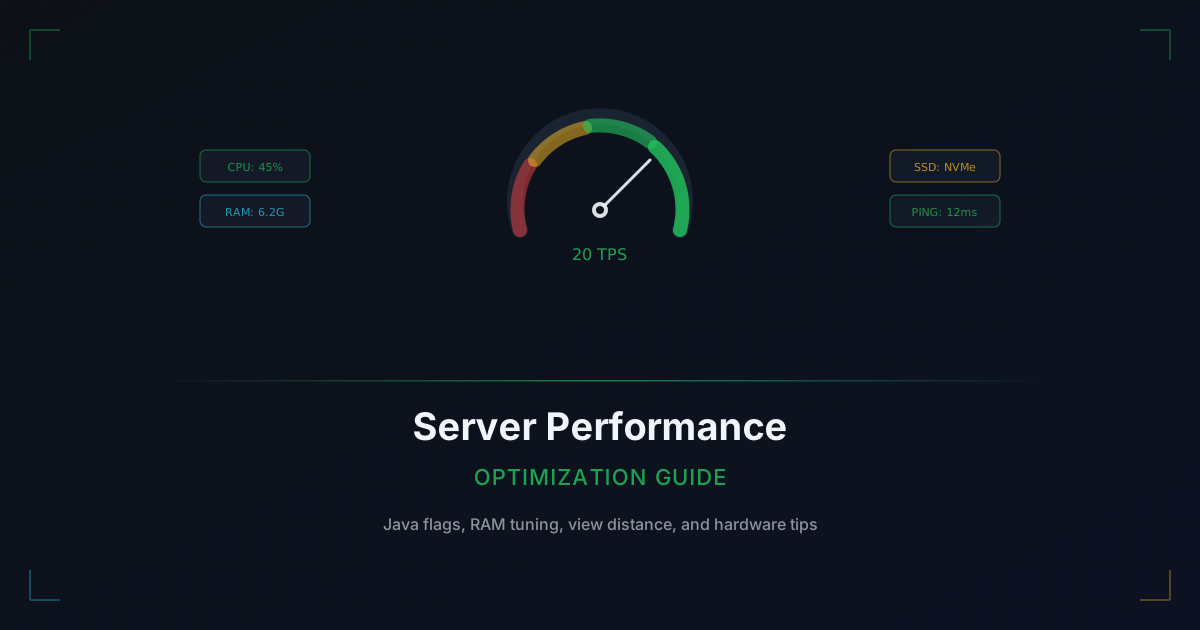
- TPS (Ticks Per Second) - The server targets 20 TPS. Sustained drops below 18 TPS indicate performance problems. Below 15 TPS is noticeably laggy.
- Memory usage - If your server consistently uses more than 85% of allocated RAM, increase allocation or reduce view distance.
- CPU usage - One core at 100% means your single-threaded budget is maxed. Reduce entity counts or view distance.
- Chunk generation rate - Spikes in chunk generation correlate with lag spikes when players explore new areas.
Use your hosting panel or server console commands to monitor these metrics. Set up alerts for TPS drops so you can respond before players notice.
Troubleshooting Common Lag Issues
| Symptom | Likely Cause | Fix |
|---|---|---|
| Lag spikes every few minutes | Garbage collection pauses | Tune GC flags, ensure -Xms equals -Xmx |
| Lag when players explore new areas | Chunk generation | Pre-generate terrain, use SSD storage |
| Steady lag with many players | CPU bottleneck | Reduce view distance, limit entities |
| Lag after server runs for days | Memory leak (often from mods) | Schedule regular restarts (every 12-24 hours) |
| Lag when players join modded server | Asset streaming | Ensure adequate upload bandwidth |
Linux vs Windows
For dedicated hosting, Linux outperforms Windows for game servers:
- Lower OS overhead (more resources available for the server)
- Better I/O scheduling for disk-heavy workloads
- No forced updates or restarts
- Easier to automate with systemd services and cron jobs
Ubuntu Server or Debian are the most common choices. If you are not comfortable with Linux, Windows works fine for smaller servers, but you will leave some performance on the table.
Final Checklist
Before going live, make sure you have:
- Set -Xms equal to -Xmx with appropriate RAM allocation
- Configured G1GC with optimized flags
- Adjusted view distance for your expected player count
- SSD or NVMe storage for the world data directory
- Entity spawn limits configured
- UDP port 5520 open and not throttled
- Monitoring in place for TPS, RAM, and CPU
- Scheduled automatic restarts every 12-24 hours
- Backups running before each restart
A well-tuned server is the foundation of a great player experience. Get the performance right, and everything else (community, content, growth) becomes easier.