How to Set Up Your Own Hytale Server
Running your own Hytale server gives you full control over your multiplayer experience. You can customize game settings, install mods, invite friends, or open it up to the public. This guide covers everything you need to go from zero to a fully running server.
Requirements
Before you start, make sure you have the following:
- Operating System - Windows, Linux, or macOS (Linux is recommended for dedicated hosting)
- RAM - At least 4 GB dedicated to the server (8 GB recommended for 20+ players)
- CPU - A modern processor with 3.5 GHz+ clock speed. Hytale server tasks are primarily single-threaded, so clock speed matters more than core count.
- Storage - 20 GB SSD minimum (NVMe preferred for faster chunk loading)
- Network - A stable internet connection with the ability to forward UDP port 5520
- Java 25 - Hytale's server runs on Java 25. Download it from the official Adoptium or Oracle site.
RAM Recommendations by Server Size
| Players | RAM | CPU Cores |
|---|---|---|
| 1-10 (friends) | 4-6 GB | 2-4 |
| 10-30 (community) | 8-10 GB | 4-6 |
| 30-50 (large) | 12 GB | 6-8 |
| 50+ (massive) | 16+ GB | 8+ |
Step 1: Download the Server Software
Download the official Hytale dedicated server software from the Hypixel Studios support site. The server is available for both x64 and arm64 architectures.
You will receive two key files:
HytaleServer.jar- The main server executableHytaleServer.aot- Ahead-of-time compiled version for better performance on supported systems
Step 2: Initial Setup
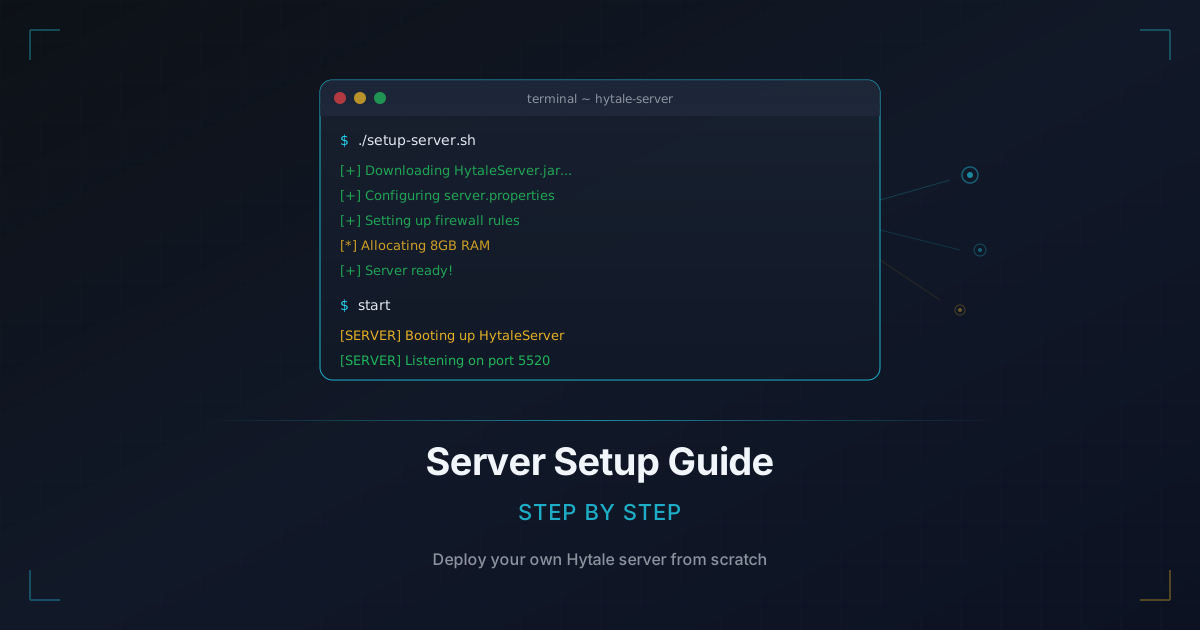
Create a dedicated directory for your server and place the downloaded files inside it. Then run the server for the first time:
java -Xmx4G -Xms4G -jar HytaleServer.jar
The -Xmx and -Xms flags set the maximum and minimum RAM allocation. Adjust these based on your plan (e.g., -Xmx8G for 8 GB).
On first run, the server will generate default configuration files and a starter world, then shut down. This is normal.
Step 3: Configure Your Server
The main configuration lives in config.json at the server root. Each world also has its own config at universe/worlds/<world_name>/config.json. Key settings to customize:
- Server name and description - What players see in the server browser
- Max players - How many concurrent players to allow
- PvP toggle - Enable or disable player-versus-player combat
- View distance - Default is 12 chunks (384 blocks). Lower this to reduce RAM usage, raise it for a better experience on powerful hardware.
- Whitelist - Restrict access to approved players only
Important: Configuration files are read on startup. If you edit them while the server is running, your changes may be overwritten. Always stop the server before making config changes.
Step 4: Networking and Port Forwarding
Hytale uses QUIC over UDP on port 5520. To let players connect from outside your local network:
- Log into your router's admin panel (usually at
192.168.1.1or192.168.0.1) - Find the Port Forwarding section
- Create a new rule forwarding UDP port 5520 to your server machine's local IP address
- Save and apply
If you are using a cloud VPS or dedicated server, you may need to configure the firewall instead. For example, on Linux with ufw:
sudo ufw allow 5520/udp
A Note on Game Firewalls
Some hosting providers (like OVH Game servers) have a dedicated game firewall that blocks all inbound UDP by default. You will need to add an explicit allow rule for port 5520 in the provider's control panel.
Step 5: Start the Server
With your configuration in place and port forwarding set up, start the server:
java -Xmx8G -Xms8G -jar HytaleServer.jar
Watch the console output for the message:
[SERVER] Listening on port 5520
Once you see this, your server is live and accepting connections.
Step 6: Share Your Server
Now that your server is running, let people know about it:
- Submit to Hytale Den - Add your server to our directory so players can discover it. Include a clear description, accurate tags, and your server address.
- Create a Discord - Set up a community Discord server for your players to chat, coordinate, and stay updated.
- Spread the word - Share your listing on social media and Hytale community forums.
Tips for a Successful Server
- Set up regular backups. Automate daily world backups so you never lose progress. A corrupted world with no backup is a painful lesson.
- Install anti-grief protections. Use server plugins to prevent unauthorized building and destruction in protected areas.
- Recruit moderators. You cannot be online 24/7. Find trusted players to help manage the community.
- Keep it updated. Hytale releases 1-2 updates per month. Stay current to get bug fixes and new features.
- Monitor performance. Keep an eye on RAM and CPU usage. If the server starts lagging, consider reducing view distance or upgrading your hardware.
The Easy Route: Managed Hosting
If you do not want to deal with hardware, networking, and system administration, consider a managed hosting solution. Hytale Den offers server hosting with plans starting at 4 GB RAM, one-click server setup, automatic updates, and a web-based management panel. Check out our hosting page to learn more.
Good luck with your server!